Build a mineral processing study in DPSIM Developer, submit it for online execution and review the recording in DPSIM Player.
Beta testers wanted. We are developing this workflow and inviting engineers, researchers and students to help test project submission, simulation results and usability.
How online simulation works
The workflow connects three applications: DPSIM Developer prepares the study, DPSIM Runner executes it through the EPM processing service, and DPSIM Player opens the completed recording. The website manages access, submissions and delivery of results. You do not need to install or operate Runner.
1. Get access and prepare your study
Apply for beta access below. Selected participants use an individual DPSIM account to access their study area and the available Developer and Player downloads. An existing forum account can be used, but simulation access must still be approved.
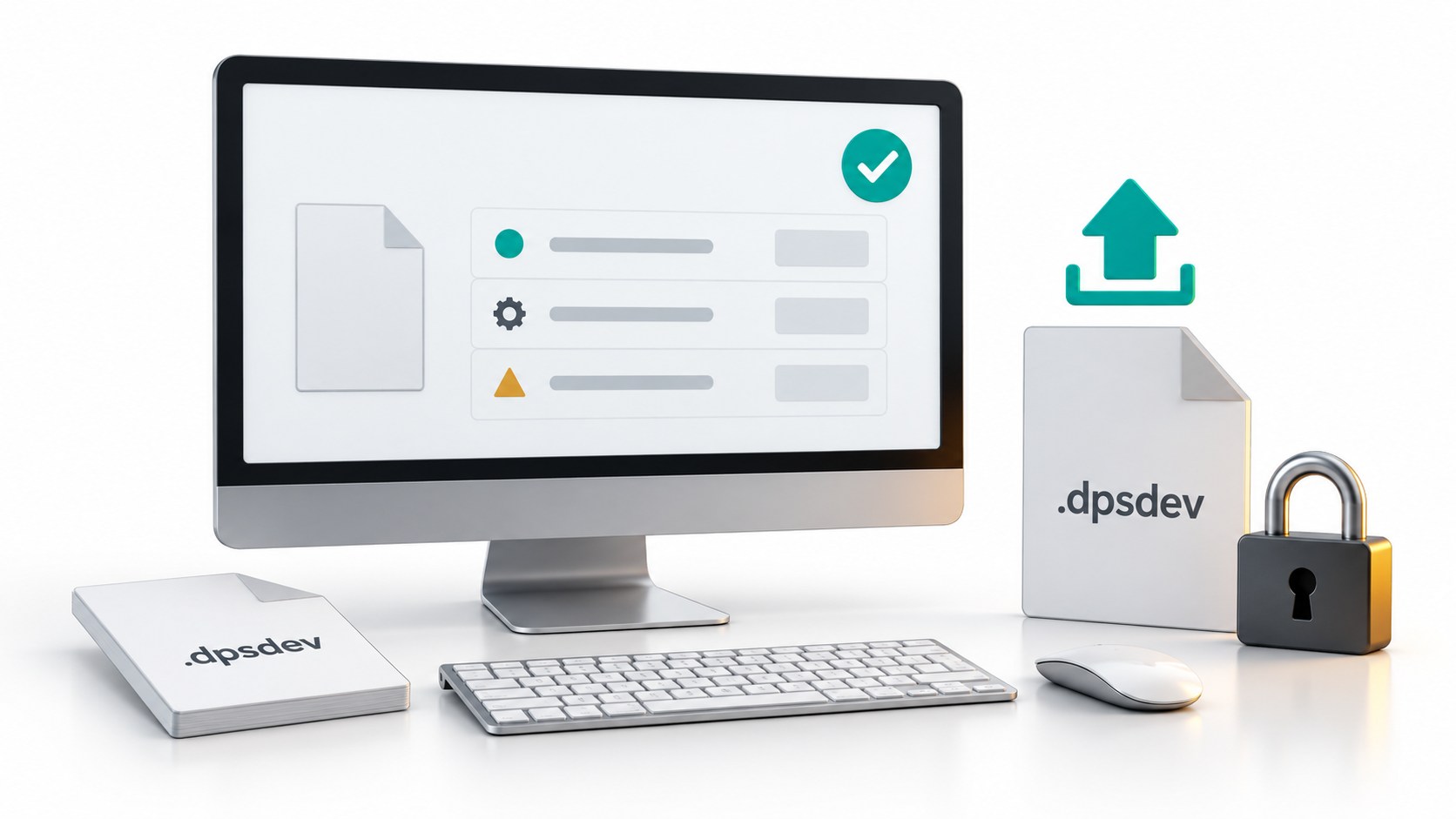
In Developer, build and connect the flowsheet, define feed and material properties, configure the equipment models and set the simulation conditions. Review the project assumptions and save the study as a .dpsdev file before submitting it.
2. Send a saved project version
From Developer: sign in to your DPSIM account and click Play. Developer saves the project and uploads a separate snapshot of that version. You can continue editing locally; later changes do not alter the study already sent. To evaluate a changed project, submit a new run.
From the website: sign in to My studies, select the saved .dpsdev file and submit it. This is an alternative to sending the project from Developer. Each uploaded study can be up to 60 MiB.
An internet connection is required to submit a study, check its status and download its result. Keep your local project file so you can revise or resubmit the study later.
3. Follow the execution queue
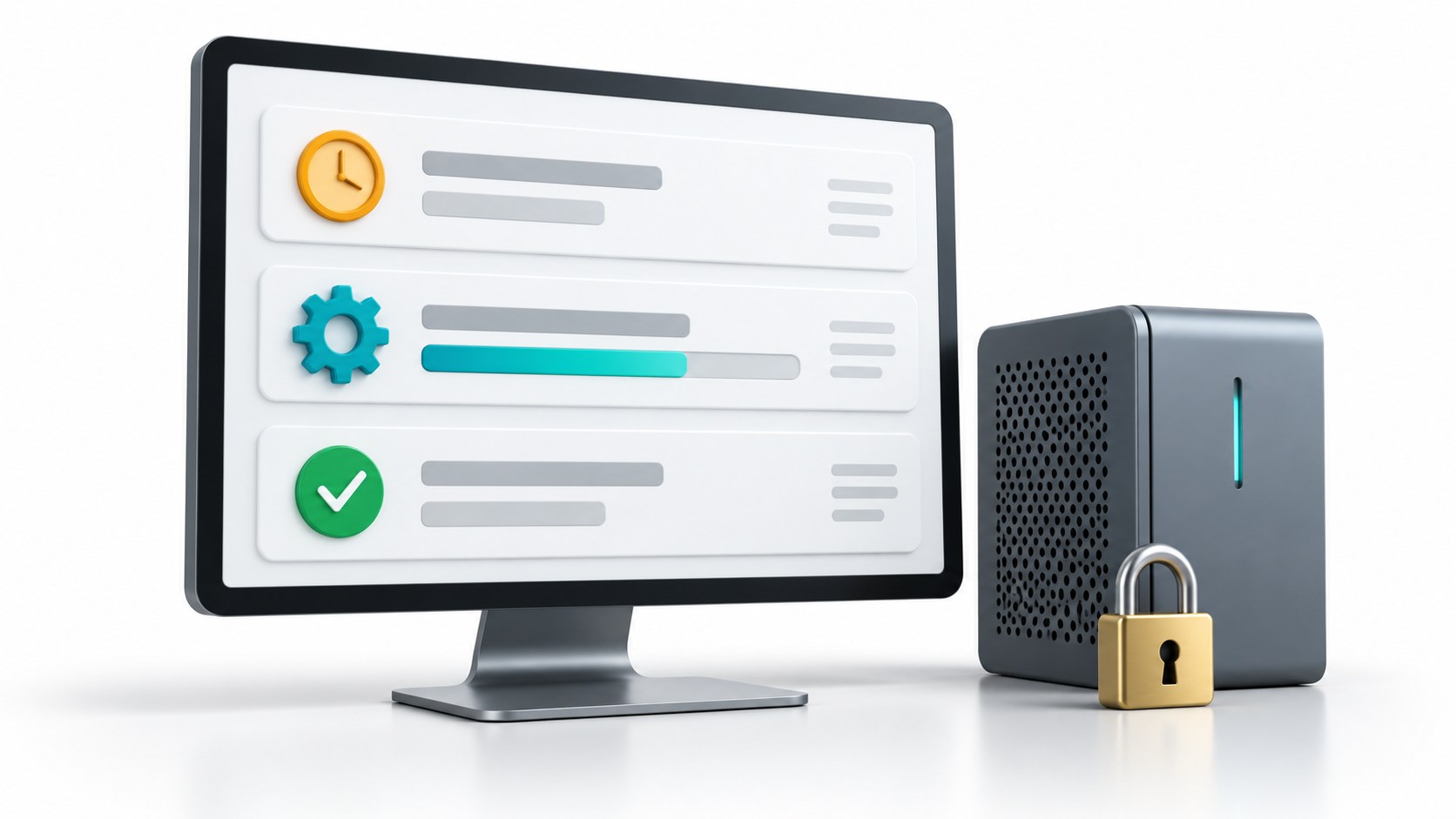
Accepted studies enter a queue. Queued means the study is waiting for processing; Running means it has been taken for execution. The processing service runs the submitted project using DPSIM Runner and sends the completed recording back to your account.
Start time depends on the queue and service availability. Execution time depends on the flowsheet, simulation duration, time step and recording settings. During the beta, processing is not guaranteed to be immediate or continuously available.
For a study sent from Developer, use Online Runs to follow its status. Developer checks for updates while it is open and signed in. For a browser upload, follow the study in My studies on the website. Closing Developer or disconnecting after a submission has been accepted does not cancel that study.
4. Receive the completed result
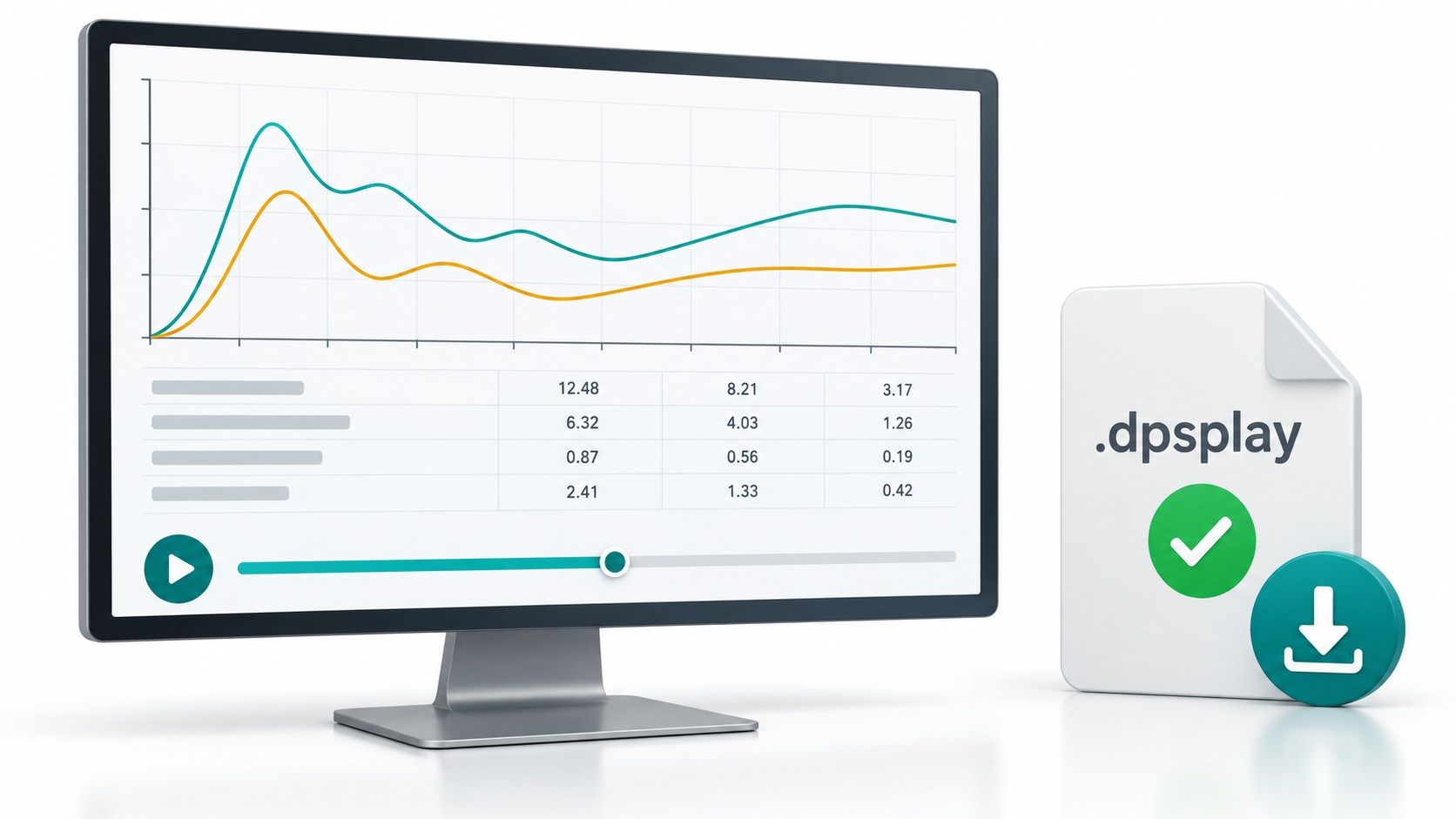
When processing succeeds, the study becomes Completed and a .dpsplay recording is available. Results are delivered through your account, not through a public download link.
For runs submitted from Developer, the application downloads and checks the recording when it detects completion. With Open Player when this run is ready enabled, it opens the result automatically. You can also select the run and choose Open in Player. Developer and Player must both be installed for this workflow.
For browser uploads, download the completed .dpsplay file from My studies and open it in Player. The input project and the result recording are different files: keep the .dpsdev for further editing and the .dpsplay for reviewing that execution.
5. Review the simulation in Player
Player lets you move through the recorded timeline, inspect equipment and stream values, and review recorded trends. It reads the simulation result rather than recalculating the project. Once downloaded, a local recording can be reviewed without remaining connected to the execution service.
The recording contains the variables and time intervals selected for the study. It is not a continuous capture of every intermediate state: events between recorded samples may not be visible. Choose recording settings that suit the behavior you want to investigate.
If an upload, download or simulation fails
If an upload is interrupted, use Retry / download again for the existing entry in Developer instead of repeatedly pressing Play. Retrying that upload keeps the same submitted version; pressing Play again creates a separate run. If only the result download fails, retrying the download does not repeat the simulation.
A Failed study has not produced a completed result for delivery. Review the status and contact EPM if you need help before submitting a corrected project. The beta is intended to identify these issues as well as improve the normal workflow.
Early access, with private studies
Each participant has an individual account. Submitted projects and results are available to their owner and the authorized EPM operators who process and support the study. They are not public forum attachments.
The beta is still under development. Access and application downloads are approved individually. Features, availability and limits may change. Review simulation assumptions and results independently before using them for engineering decisions.
DPSIM Developer and Player use Windows. This online workflow is separate from the free DPSIM Static Module.
Help test DPSIM online
Tell us what you would like to simulate and how you can help. We will contact selected participants as access becomes available. Applying does not automatically enable simulation runs.
Already invited? Create your DPSIM account or sign in. Your existing DPSIM forum account can also be used; study access still requires approval.