
DPSIM Developer · Reference
Developer reference manual
A detailed reference for workspaces, controls, data behavior and common problems. Use the tutorials for a checked step-by-step exercise.
Authoring and execution
| Task | Where it happens |
|---|---|
| Edit circuit, material, model parameters and initial conditions | Developer → Process Simulator |
| Define tags, enabled scripts and their order | Developer → Script Manager |
| Run the local steady-state calculation | Simulation → Run steady-state simulation; no scripts or dynamic controls |
| Execute the dynamic scenario | Online service / Runner after Confirm and send |
| Inspect and present the recording | DPSIM Player; no simulation execution |
Developer uses two windows in one project. Dynamic scripts are saved with the study for Runner, not executed locally while you type. Use a Windows Full HD display for the desktop applications.
Workspace reference: commands and panels

Process Simulator owns the model and its material streams. Its upper-right stream panel follows the selected stream; its lower-right panel follows the selected equipment. Model Parameters are inputs, Calculated results are outputs from the current calculation and Detailed Output contains model-specific detail. Confirm the selected owner before changing a field.
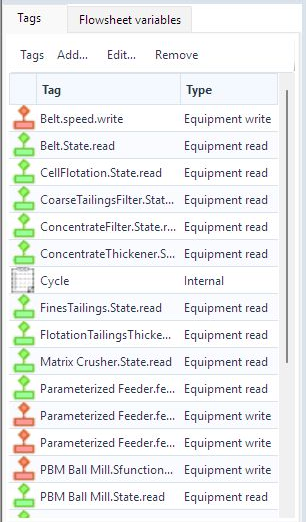
Script Manager owns the sequence and bindings. The global script list selects source, the On/Enabled controls determine execution, the Tags tab contains bound/internal/calculated study values and Flowsheet variables helps browse exposed model quantities. A folder changes organization, not execution order.
Projects and local files
| Command / format | Meaning |
|---|---|
| New project / Ctrl+N | Create an authoring project. |
| Open project / Ctrl+O | Open an existing .dpsdev project. |
| Save project / Ctrl+S | Save locally; account registration is not required. |
| Save project as / Ctrl+Shift+S | Create a separate scenario or backup. |
| Project information | Edit the study name and description. |
.dpsdev | Editable Developer project; keep this to revise the study. |
.dpsplay | Recorded result opened by Player, generated after execution. |
| Import .cs / Export .cs | Transfer script text; not a complete project or recording. |
Save regularly and retain a named base case. Recovering presentation data from a Player file does not recreate the editable authoring project.
Model preparation and capabilities
Define material components, size classes and feed distributions consistently, then connect the flowsheet and configure the selected equipment models. Use Models reference for model-specific assumptions and the Static Module tutorials for the common flowsheet editing concepts.
Use Simulation → Model capabilities before relying on a model in a dynamic study. Review starting inventories for storage equipment. The local steady-state run completes its configured iterations; automatic convergence is not checked. Scripts and dynamic controls are excluded from that local calculation.
Tag types and bindings
| Type | Purpose / configuration |
|---|---|
| Internal value | A study variable with an initial value; it is not automatically connected to a model input. |
| Calculated value | A value defined by an expression; review its referenced names and the current expression support. |
| Equipment parameter – read | Read the selected equipment value exposed by its binding picker. |
| Equipment parameter – write | Write an exposed editable equipment parameter; check units and allowed values. |
| Stream value – read | Read a selected stream quantity. |
| Stream value – write | Write a stream quantity that is offered by the binding picker. |
A tag name is unique without regard to case. Choose the actual equipment/stream and value in the tag dialog. Do not assume every displayed result is writable. Insert tag inserts the selected name in the editor; renaming a binding requires checking every script that refers to it.
Scripts, order and API
Add script, Remove, Enabled and Move up/down determine the active logic and its global sequence. Folder view organizes authoring metadata; it does not define global execution order. A folder name is not an execution condition.
| Expression / call | Use |
|---|---|
IsDynamic | A dynamic-mode guard used by the study logic. |
TimeSeconds | Current simulation time in seconds; independent of a display unit selected in a dialog. |
Tags.GetNumber("TagName") | Read a numeric tag using its exact name. |
Tags.SetNumber("TagName", value) | Assign a numeric value through a suitable tag. |
State.GetNumber("Key", defaultValue) | Retrieve persistent runtime state with a default. |
State.Set("Key", value) | Store runtime state for later cycles of the run. |
Use the editor’s Insert code and API reference for current syntax. Give state keys distinct names and bound commands to the model’s valid range. Compilation and execution errors are Runner results; a preflight success does not prove that a script is valid. The script tutorial provides a deliberately isolated internal-tag exercise.
Simulation and recording settings
| Setting | Effect |
|---|---|
| Simulation duration | The span of simulation time to calculate. |
| Simulation time step | The calculation cadence, chosen for the model and response of interest. |
| Recording interval | The cadence of saved states. Coarse recording may miss changes between saved instants. |
| Schedule preview | Shows calculation cycles and recorded states; estimates steps and saved states. |
| Initial / final states | Always recorded. Each recorded state includes complete selected stream/equipment data and all tags. |
| Name and description | Identify the submitted scenario; review edits before Confirm and send. |
Respect the combinations accepted by the dialog. A finer calculation step increases work; a finer recording interval also increases the recording. File-size estimates are approximate. The dialog cannot reliably predict local processing time for Runner. Current limits are supplied and enforced by the service.
Source inclusion and distribution
Allow script source code in Player (read-only) controls whether source is included in the result. Unchecked omits source from the recording. Checked allows anyone with the recording to read and copy the included source, including disabled scripts. Player never executes it.
This setting is not encryption, recipient authorization or a general project-data protection mechanism. Share only recordings whose process data and optional source may be disclosed to the intended recipients. Keep the editable project separately.
Online review, limits and result delivery
Run dynamic simulation online opens a review, rather than immediately executing the project. Preflight checks data and configuration without running the dynamic engine or scripts. Resolve blocking issues and assess warnings. The current limits must be available; use Refresh limits when needed. Confirm and send starts submission.
Local saving works without login. Guest online access, where available, uses a shared allowance; signed-in access uses the account’s current allowance. Capacity, daily quota and execution limits can be rechecked on submission. There are no fixed public quota numbers in this manual.
Online Runs separates processing and transfer. Use Refresh, Retry transfer, Open in Player and Downloaded results folder as appropriate to the selected result. Keep a local archive: the online recording is temporary delivery.
Troubleshooting
| Symptom | Check |
|---|---|
| Send remains unavailable | Current limits, blocking report items, warning acknowledgement, session and connectivity. |
| Preflight passes but run fails | Runner’s compilation/runtime/numerical message; preflight does not execute the study. |
| Tag does not affect equipment | Internal versus write binding, selected target, units, enabled script and global order. |
| Unexpected initial response | Starting inventory, base-case parameters and conflicting scripts. |
| Finished calculation, no local recording | Transfer state; retry transfer before resubmitting a successful simulation. |
| Open in Player fails | Player installation and the downloaded local result path. |
| Short event is absent in Player | Original recording interval; a later viewer cannot reconstruct unsaved states. |
Initial inventory and the time-zero sample
| Field | Physical basis | Check before saving |
|---|---|---|
| Solids held (t) | Stored dry-solids mass | Nonzero solids need a valid reference material composition and size distribution. |
| Water held (t) | Stored water mass | Do not enter m³/h or a discharge rate here. |
| Composition from stream | Reference stream’s solids component and size distributions | Complete the distributions to 100% and select the intended stream, not merely one with a similar name. |
The inventory is applied before the initial recorded sample. Finish drafts before submission. Compare empty-start and preloaded scenarios explicitly; do not interpret a startup surge without checking its initial storage basis.
Standard example and scripting boundaries
The complete six-script walkthrough gives the exact source and a block-by-block explanation. It covers normal commands, later interlock overrides, the model-parameter variation and the single-cycle advancement request.
| Call / object | Reference behavior |
|---|---|
| Tags.TryGetNumber(name, out value) | Allows a missing/non-numeric binding to be handled deliberately rather than assuming a successful read. |
| Tags.SendCommand("SimulatorRun") | Requests advancement through Runner’s per-cycle guard; it is not an unlimited inner-loop simulator. |
| Watch.Set(name, value) | Diagnostic script information. Do not assume every watch value is a recorded numeric Player variable. |
| System.Random in the supplied example | No explicit fixed seed; repeated runs are not promised to reproduce the same sequence. |
| State.GetNumber / State.Set | Persistent runtime values across cycles of a run. Local variables are recreated on invocation; state is not permanent project-file storage. |
Values such as the ore script’s variationFraction = 4 are illustrative source settings, not engineering recommendations. Confirm physical parameter constraints and the time basis when adapting them.
Reference procedure: from model to inspectable result
- Identify the study question and save an independent authoring scenario. Define material, feed, connected models and initial inventories.
- Review model capabilities and inspect the local steady-state base case where useful. Completion of configured iterations is separate from convergence.
- Verify tag directions, units, enabled scripts and the global sequence. Keep normal commands before the interlocks that must override them.
- Review duration, calculation step, recording interval, source inclusion and the current data-only preflight report. Confirm and send only after resolving blockers.
- Use Online Runs to separate execution failure from a failed recording transfer. Retry a failed transfer rather than automatically rerunning a successful job.
- Open the downloaded result in Player, verify identity and recorded timing, then inspect the physical outputs and commands required by the study.
See the online tutorial for a reading of each report field and the Player analysis tutorial for a checked numerical example.